Posts

HEADER, FOOTER & PAGE NUMBERS IN MS-WORD

Image
 HEADER, FOOTER & PAGE NUMBERS IN MS-WORD Header & Footer in MS-Word simply means that a Text which is written at the Top or Bottom of every page.  Page Numbers are simply the numbering on the page, which is made automatic by activating it through Page Numbers option.  Header & Footer can be found in Insert Menu. When we click on them they give us some pre-loaded options which can be used to satisfy your need of header or footer.  Another option given is Edit Header. When we click on Edit Header we get a new  Menu with a change on Document Screen which looks like as given below: MENU BAR DOCUMENT SCREEN Header & Footer: This gives us option same as in Insert Menu.  Page Numbers: This allows us to insert Page Number at      Top of Page: Allows to insert Page Number at Top of Page (Left, Right, Center)      Bottom of Page:  Allows to insert Page Number at Bottom of Page (Left, Right, Center)    ...

TALLY PRIME GLIMPSES

Image
TALLY PRIME GLIMPSES Tally is all set with new look. It is only One day today since I have seen its new look or I should say less than 24 hours even. It's new look is very good. It has been tried to make Tally more easy for its customers to use. They have made it to look like windows with certain drop down menus in them which are not really visible until you click on them.  These are all the Menus given on Top under the Heading Manage. Alt + K - Company Alt + Y - Data Alt + Z - Exchange  Alt + O - Import Alt + E - Export Alt + M - E-mail Alt + P - Print F1 - Help    Also they have changed the way of entering data trying to make it more convenient for its users. Despite of all these changes they have kept all the shortcut keys same as they were in older versions.  Look of Gateway of Tally has also changed Earlier Accounting Info, Inventory Info, Payroll used to come under Masters but in Prime Master shows Create & Alter under which we can now create or change...

Paste Special in MS-Excel

Image
Paste Special in MS-Excel Paste Special in MS-Excel provides many options. When we copy any data and simply paste it to some other cell it is copied with all its settings such as formula, font size, comments, etc. which are in it.  But Paste Special provides us the facility to not to copy things which we don't want. Here I would try to describe all basic points.  First of all we will see how Paste Special looks like when we copy any data and open the Paste Special Window. It may differ from the type of data copied.  Here we can see under paste many things are written. I have already described all above. Formulas: When we copy a cell which contains formula and we want to only paste that formula on a particular cell we use this.  Value: When we want to copy the value in cell to any other place than we have to use this.  Formats: This is used to copy the formatting of a cell to another cell. For example if we have changed the font size of a cell or change the forma...

DATA VALIDATION IN MS-EXCEL

Image
  DATA VALIDATION IN MS-EXCEL YOUTUBE LINK:  DATA VALIDATON IN MS-EXCEL: https://youtu.be/pf7jAcKjIiU Data validation comes in Data Menu of Excel. Data validation is simply used to find the mistake which may occur due to typing.  Here I will explain this with an example.   In the sheet given below there are marks of few students  Here you can see in the above table that there are marks of 3 subjects and by mistake marks of Hindi (Cell E5) which has to be 45 has been fed as 450. As volume of data is less it can be easily identified but in case of larger volume it won't be easy to find such mistakes.  Here the need of validation appears. There are two methods one that you stop the person from wrong feeding as soon as he enters the data or check all at once if not applied earlier.  As in above table we can apply validation on the Marks cell or Total cell. When we click on Data Validation its window appears as given below: Here under Validation Criteria we...

Mathematical Equation Insertion in MS-Word

Image
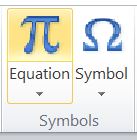
Mathematical Equation Insertion in MS-Word It is very easy to insert Mathematical Equation in MS-Word. For this we have to Click on Insert Menu. Under which we get the option of Equation which looks as given below: When we click on it, there come few examples as given below: If we want to Insert a new equation which is not available in the example, than we have to click on Insert New Equation. When we click on  Insert New Equation. A new Toolbar appears on screen by whose help we can insert different symbols and structures to insert our Equation properly. It provides us symbols of different types. which can be seen under symbols toolbar. They are as given below. And other option which is available is Structures, by which we can input different type of structures such as Fraction, Script, Radical, etc. All are as given below: These equations can be prepared here and can be copied to any other software. In software like Coreldraw, Page Maker, etc. we get the option of insert object i...

Screenshot Tool in MS-Office

Image
 Screenshot Tool in MS-Office MS-Office gives us many tools. One of its tool is Screenshot, which helps us to take a snap/image of the screen and place it in our document directly. For instance one wants to add an image which a person is not able to download form internet. One can simply use Snipping tool available in windows or Screenshot available in Software of MS-Office.  Screenshot is available in Insert Menu of Word, Excel, PowerPoint. When you click on Screenshot in Insert menu. It shows you Available Windows as the option in which it shows all the windows which are currently open. They image is not very appropriate when taken from Available Windows Option. Also sometimes it is not able to show all the open windows.  Screenshot added through Available Windows Option Other than Available Windows another option available is Screen Clipping. For which one has to keep the window open of which the Screenshot is to be taken.  We know that Alt+Tab is used to switch b...

SAVING A WORD FILE TO PDF

Image
SAVING A WORD FILE TO PDF It is very easy task, though many of us don't know about how to save a MS-Word File in PDF format.  First of all enter data as per your requirement in MS-Word. The only thing is to do when you want to save file in PDF format you have to press Save As (F12) instead of Save (Ctrl + S). In the Save As dialogue box in Save as Type select PDF and press enter. Your file will be saved in PDF Format.  In above image you can see Save As dialogue box in which Save as type has been set open. It contains PDF in it which is shown below. One has to choose only this while saving the file into PDF format.  Remember this option is only available in MS-Office version 2010 and above.  Hope the information in this blog is useful. Please do leave a comment/query for this blog. इस  प्रकार की कम्प्यूटर सम्बंधित जानकारी के लिए हमारी वेबसाइट पर ब्लॉग लिंक पर क्लिक करें।  द्वारा  कुमार वैभव  डायरेक्टर  वैभव कंप्यूटर सेंटर एवं कंसल्टेंसी ...